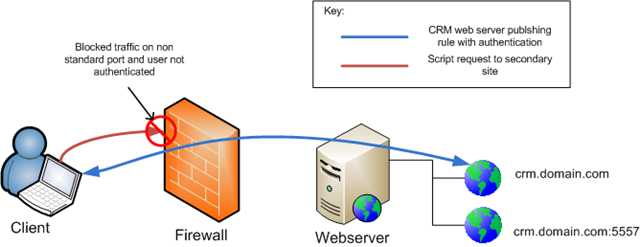
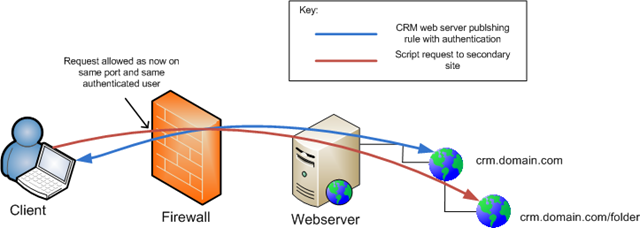
As I mentioned in my previous post (here) we have been trying to run our custom CRM extensions inside the main IIS website (IIS 7.0) for Dynamics CRM 4.0. This means that when publishing the website to the Internet we don’t have any issues with users making requests to different sites etc… In this post I’ll run through the solution I found for running custom aspx & asp pages in separate web applications under the main CRM website as well as talking about the issues I encountered along the way. In our scenario one of the custom web applications needed to be run as a 32bit web application where as our server was running 64bit Dynamics, this will be the scenario I will focus on for this guide however I did end up with two custom web applications, one for 32bit and one for 64bit so any other iteration should be possible.
Problem
Solution
How to implement the solution
Create your new web applications
The first thing you want to do is create yourself two new applications pools, one for 32bit and one for 64bit, these should be separate from the CRM web application. This was covered in my last post so see here for more information.
Tidy up 64bit extensions
Having created your 32bit child web application and then trying to browse to the site you will probably get the following error:
“Calling LoadLibraryEX on ISAPI filter “C:\Program Files\Microsoft Dynamics CRM\Server\bin\DefaultAddonFilter.dll” failed
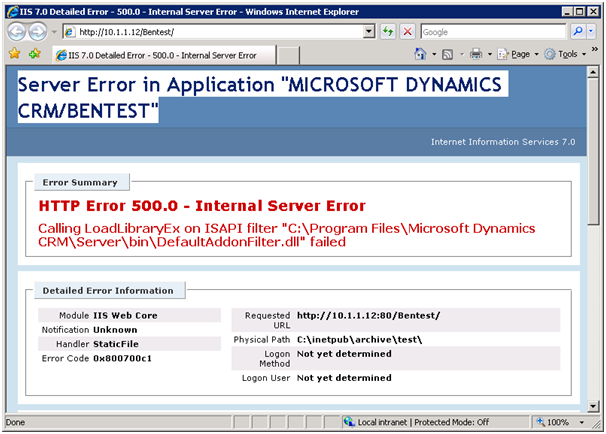
This is because the Defaultaddonfilter.dll file is a 64bit extension and our 32bit web application is unable to load it. It is trying to be loaded due to the settings being inherited from the main website configuration. To fix this problem we need to make a small change to the applicationhost.config file:
-
Browse to the following path on the server: c:\Windows\System32\inetsrv\config\
-
Open up the applicationhost.config file in an editor and look for the following line (950 on my box):
<isapiFilters>
<filter name=”CRM.Default.Addon” path=”C:\Program Files\Microsoft Dynamics CRM\Server\bin\DefaultAddonFilter.dll” enabled=”true” />
</isapiFilters>
-
Carefully add preCondition=”bitness64″ onto the end of this line. This command tells IIS to only load this module if the application pool is running with 64bits. Your line should now read:
<isapiFilters>
<filter name=”CRM.Default.Addon” path=”C:\Program Files\Microsoft Dynamics CRM\Server\bin\DefaultAddonFilter.dll” enabled=”true” preCondition=”bitness64″ />
</isapiFilters>
-
Save the file back and reload your page
Remove CRM modules
When running your application after completing the above you will probably get the following error:
[NullReferenceException: Object reference not set to an instance of an object.]Microsoft.Crm.Authentication.InternalRequestAddressHelper.GetInternalNetworkAddresses() +108
Microsoft.Crm.Authentication.InternalRequestAddressHelper.IsInternalAddress(IPAddress requestAddress) +82
Microsoft.Crm.ServerLocatorService.IsPathBasedURLsEnabled() +143
Microsoft.Crm.MapOrgEngine.Execute(Object sender, EventArgs e) +44
System.Web.SyncEventExecutionStep.System.Web.HttpApplication.IExecutionStep.Execute() +92
System.Web.HttpApplication.ExecuteStep(IExecutionStep step, Boolean& completedSynchronously) +64
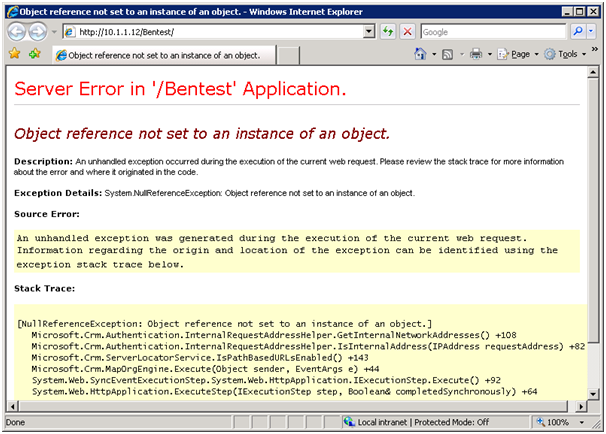
This is again down to the settings this web application has inherited from its parent, in this case the modules. To sort this error do the following:
-
In the IIS console browse to your web application and open up the “modules” section
-
Look down the list and you should see two entries that are related to Microsoft.CRM (in my case CrmAuthentication & MapOrg
-
Highlight these entries and remove them
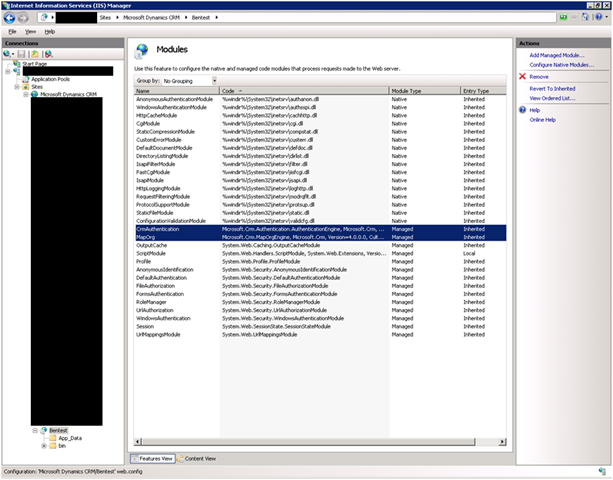
After completing both items above your custom script should now be working correctly
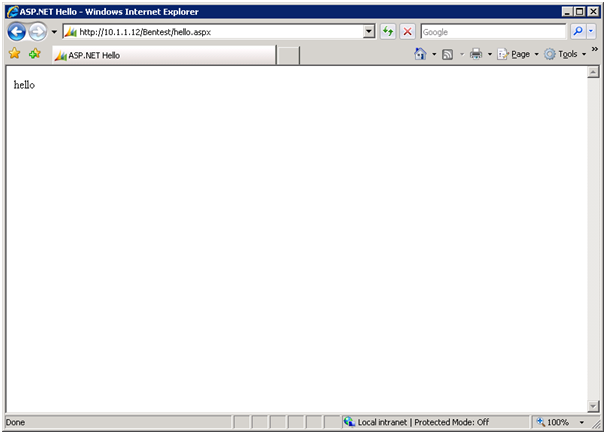
Further Troubleshooting
Running asp pages under the CRM site
“HTTP Error 404.3 – Not Found
The page you are requesting cannot be served because of the extension configuration. If the page is a script, add a handler. If the file should be downloaded, add a MIME map.”
This is because the asp handler is a 64bit application so it wasn’t running under my 32bit web application. To sort this out I simply created a second sub-application this time running under a 64bit web application.
This then generated the following:
“HTTP Error 404.17 – Not Found
The requested content appears to be script and will not be served by the static file handler.”
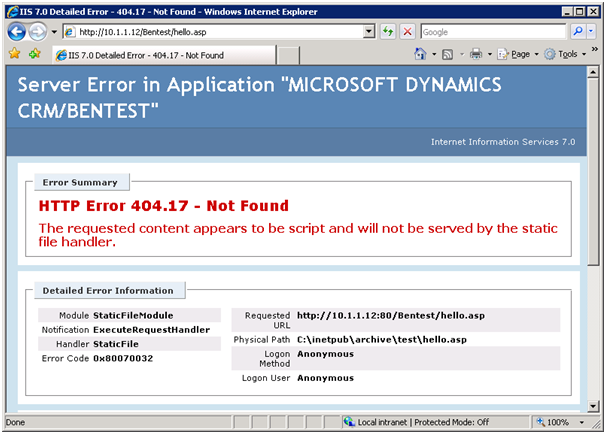
-
Open the web.config file for this location (in my case c:\inetpub\archive\test) or create one at the root of your application
-
Enter the following lines between the <system.webserver> tags
<handlers>
<add name=”asp” path=”*.asp” verb=”*” modules=”IsapiModule” scriptProcessor=”C:\WINDOWS\system32\inetsrv\asp.dll” resourceType=”Unspecified” requireAccess=”Script” preCondition=”bitness64″ />
</handlers>
This should add-in the correct ASP isapimodule for IIS to run your application.
Incorrect bit level set
“BadImageFormatException: Could not load file or assembly ‘microsoft.crm.sdk’ or one of its dependencies. An attempt was made to load a program with an incorrect format.”
This is caused by the wrong type of application being loaded, e.g 64bit module in a 32bit site or vise-versa.
Finally
The above solution worked for the custom applications that I needed to run, there are no guarantees that it will do what you need but I don’t see why with a little bit of trial and error its possible to run any applications you want under the root CRM site. I am a little bit wary that any future patches to CRM will change the applicationhost.config file back to its previous state but hopefully that should be fairly simple to put right again.
If anyone has used the above to help with a CRM issue I would love to hear from you so please drop me a comment using the form below.
[tags]iis 7.0,server 2008, crm 4.0[/tags]